Showing posts with label AWS S3. Show all posts

Export Athena View as CSV to AWS S3 using Glue

Today we will learn on how to export Athena view to AWS S3 using Glue

Move file from one S3 folder to another using AWS Glue

Today we will learn on how to move file from one S3 location to another using AWS Glue 

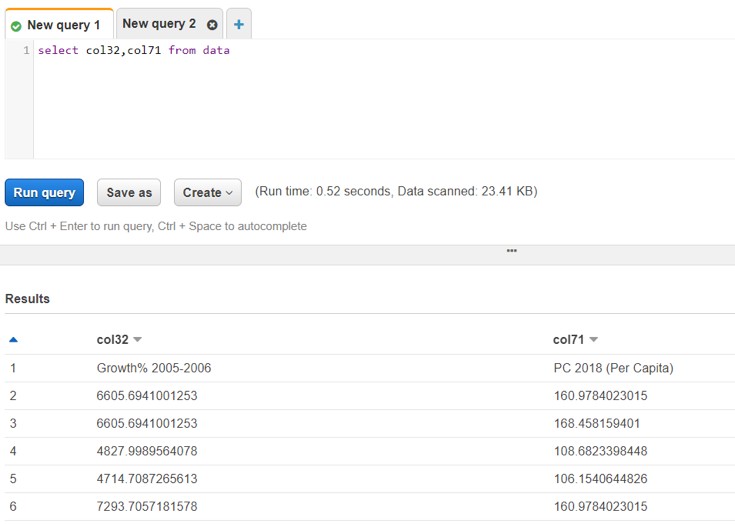
AWS Glue crawler cannot extract CSV headers properly

Scenario: You have an UTF-8 encoded CSV stored at S3. You ran a Glue crawler to create a metadata table and further read the table in Athena. When you query the table in Athena, you don't get the headers instead every column is named as (col1, col2, col3,...so on)

AWS Glue Fatal exception com.amazonaws.services.glue.readers unable to parse file data.csv

Error in AWS Glue: Fatal exception com.amazonaws.services.glue.readers unable to parse file data.csv 

Resolution: This error comes when your csv is either not "UTF-8" encoded or in your "utf-8" encoded csv there are still some special unicode characters left (generally this happens when you convert csv from excel workbook by right clicking and save as csv). To see the special unicode characters, open your file in the Notepad++ and scan the file.
There are two ways to convert Xlsx to CSV UTF-8:
  1. Convert it from Excel
    • Open xlsx/csv in excel and go to file>save as
    • select Tools > web options
      • Go to Encoding > select "UTF-8"
    • Now upload the file in S3
    • Preview the file in S3
      • select the file > preview 
    • If every thing is fine, you will see the CSV data in the S3 preview
    • If your file has some special unicode characters, S3 will give below error
  1. Convert to UTF-8 programmatically (Best approach)
    1. Write a python script by importing xlrd library that will read your xlsx 
    1. Specify the encoding and save the converted file to csv utf-8
    2. Now upload the file in S3 and you will be able to preview the CSV data

Create an AWS Glue crawler to load CSV from S3 into Glue and query via Athena

Let's see how we can load CSV data from S3 into Glue data catalog using Glue crawler and run SQL query on the data in Athena
Steps:
  • Go to Glue and create a Glue crawler
  • Select Crawler store type as Data stores
  • Add a data store
    • Choose your S3 bucket folder
    • Note: Please don't select the CSV file. Instead, chose the entire directory
  • Add another source = No
  • Choose IAM role
    • Select an esisting IAM role if you have. otherwise, create a new IAM role
  • Create a scheduler = Run on demand
  • Configure crawler's output
    • Select the Glue Catalog's database where you want the metadata table to be created
      • This table will only hold the schema not the data
  • Now go to the Glue Data Catalog > Databases > Tables
    • Here, you will see your new table created that is mapped to the database you specified
  • You can also see the database in the Glue Data Catalog
  • Now, go to Athena
  • Check if you have already configured an output for Athena Queries
    • Athena stores each query's metadata in S3 location. so, if path not specified, select a temporary S3 path.
  • Select the database in Athena
    • You will see your new table  created
  • Run the sql query to fetch the records from the table created above and see the records

Ingest data from external REST API into S3 using AWS Glue

Today we will learn on how to ingest weather api data into S3 using AWS Glue 
Steps:
  • Create a S3 bucket with the below folder structure:
    • S3BucketName
      • Libraries
        • Response.whl
  • Sign up in Openweathermap website and get the api key to fetch the weather data
  • Create a new Glue ETL job
    • Type: Python Shell
    • Python version: <select latest python version>
    • Python Library Path: <select the Response.whl library path>
    • This Job runs: <A new script to be authored by you>
  • Click Next
  • Click "Save job and edit Script"
  • Import response library
  • import boto3 library for saving in S3 bucket
  • Write the code to ingest data 
  • Run the glue job
                                    
  • View the glue job results 
    • Job run status = Succeeded
  • Verify if the data is saved in S3 bucket
  • Download the saved json file from S3 and check if it is correct
  • You are done. Cheers!

Upload file to a S3 bucket using Python and Selenium automation testing framework

Today we will learn on how to upload a file to a S3 bucket using Selenium automation testing framework with python
Scenario: When you run the python script for selenium, the following steps will be executed:
      • A web browser will open and at the background a test file will be uploaded to S3
      • Web browser will then navigate to Amazon account > S3 bucket
      • Web browser will verify whether the file has been uploaded or not
Steps:
  • Login to your AWS account and go to S3

  • Create an empty S3 bucket
  • Install boto3 library for python
    • you can use either commands in terminal:
      • pip install boto3
      • easy_install boto3
  • Now create a selenium framework script using python
    • Import the boto3 library in the script
    • Specify your client key and secret key
    • Specify local file path
    • Specify a S3 file name that you want to give to this new file when uploaded in S3
  • Create a boto3 client object:
    • s3 = boto3.client('s3',aws_access_key_id=ACCESS_KEY, aws_secret_access_key_id=SECRET_KEY))
  • Use the below function to upload the file to S3:
    • s3.upload_file(local_file_path, bucket, s3_file_name_to_overwrite)
  • Run the script
  • After running the script, go to AWS S3 bucket and you will find the new file uploaded.
  • You are done :)
Note: the script shared above is only for uploading the file in S3, you have to add additional steps in the python selenium framework (after the upload code) to verify, whether, the file has been successfully uploaded in S3 or not.

AWS EMR: Read CSV file from S3 bucket using Spark dataframe

Today we will learn on how to use spark within AWS EMR to access csv file from S3 bucket

Steps:
  • Create a S3 Bucket and place a csv file inside the bucket
    
  • SSH into the EMR Master node
    • Get the Master Node Public DNS from EMR Cluster settings
    • In windows, open putty and SSH into the Master node by using your key pair  (pem file)
  • Type "pyspark"
    • This will launch spark with python as default language
  • Create a spark dataframe to access the csv from S3 bucket
    • Command: df.read_csv("<S3 path to csv>",header=True,sep=',')
  • Type "df_show()" to view the results of the dataframe in tabular format
  • You are done