Ingest data from external REST API into S3 using AWS Glue

Today we will learn on how to ingest weather api data into S3 using AWS Glue 
Steps:
  • Create a S3 bucket with the below folder structure:
    • S3BucketName
      • Libraries
        • Response.whl
  • Sign up in Openweathermap website and get the api key to fetch the weather data
  • Create a new Glue ETL job
    • Type: Python Shell
    • Python version: <select latest python version>
    • Python Library Path: <select the Response.whl library path>
    • This Job runs: <A new script to be authored by you>
  • Click Next
  • Click "Save job and edit Script"
  • Import response library
  • import boto3 library for saving in S3 bucket
  • Write the code to ingest data 
  • Run the glue job
                                    
  • View the glue job results 
    • Job run status = Succeeded
  • Verify if the data is saved in S3 bucket
  • Download the saved json file from S3 and check if it is correct
  • You are done. Cheers!

Replace existing data source table with another table in Power bi

Today we will learn on how to replace a data source with another data source in power bi while maintaining all the other relationships and transformations
Steps:
  • From home, click Transform data
  • Select the Query from the left that you want to replace
  • Click Data source settings
  • Click Change source
  • Select the new source (for e.g.: new excel/csv file)
  • Click ok
  • Power bi will change the source and refresh all the data.
  • You are done.


Create an AWS lambda function to make an api call using Geopy (PyPI) library

Today we will learn on how to import external libraries in AWS Lambda function and call the api functions
Steps:
  • Create an empty AWS Lambda function
  • Download geopy library from PyPi 
    • Link: https://pypi.org/project/geopy/
    • extract the geopy folder in a separate location from the above downloaded zip
    • delete the zip and the rest. we just need the geopy folder
  • Download geographiclib library
    • Link: https://pypi.org/project/geographiclib/
    • extract the geographiclib folder in a separate location from the above downloaded zip
    • delete the zip and the rest. we just need the geographiclib folder
  • Make a zip file that combines both the above two downloaded libraries folders
  • Import/upload the zip file in our function
  • Import the geopy library
  • Write the code to calculate the distance between two cities (shown in the picture below)

  • Run the function 
    • If you are running for the first time, it will ask you to create a test event. give a name for the test event and hit execute.


  • You will see the result of the lambda function in your execution panel

Power BI - Change your data source credentials (settings)

Scenario: You want to login to a power bi dashboard using someone else's credentials and refresh the data source.

Steps:
  • within Power bi Desktop, go to File > Options and settings > Data source settings

  • Right click your data source > Edit Permissions
  • Go to Database > Supply the new username and password
  • Click Save
  • Refresh the datasource
  • You are done.


Power BI - Could not load file or assembly System.EnterpriseServices

Scenario: when i open a power bi dashboard (.pbix) file, i get an error "Could not load file or assembly 'System.EnterpriseServices', Version=4.0.0.0)

Solution: Start your Power BI Desktop by running it as administrator. Now you will either pass through the error and your dashboard will open or you will see the actual error (most common: database login failure)


How to create a Map View / Geospatial service in Microstrategy Web Dossier

Today we will learn on how to use Map View / Geospatial service in Microstrategy Web

In order to use Map view / Geospatial service, we need to first define the geography (longitude/latitude) in our dataset. If you have columns with city/country name, you can still define the geography. Microstrategy will automatically convert city/country to latitude/longitude format.

Steps:
  • Right click and edit your dataset that has either longitude/latitude or city/country names
  • Right click the column that has City/Country 
  • Define the geography accordingly (city if the column contain city names, country if it has country names )
  • It will automatically convert the city/country into latitude/longitude format
  • Click save
  • Now use Geospatial Service
    • Add the geography column under the Geo attribute 

    • Specify a color by attribute
  • Under formatting, Select Map options
    • Map style = Street

  • You are done.
  • Check the visualization

SQL: Violation of primary key constraint found duplicate key value

Scenario: we are inserting a value in our table that has a primary key constraint enabled. While inserting, we get an error: "Violation of primary key constraint 'xyz'. Cannot insert duplicate key in object 'dbo.customertbl'. The duplicate key value is (4).


Resolution: The error says that the value you are inserting in your primary key enabled column is already present in the column. Select your table and search for the value listed in your error "duplicate key value is (value)". 

You have two options:
  • Delete the value from the table (not recommended)
  • Check why the duplicate value is coming from the source query that you are inserting into this table?.
    •  Most likely, you might have to either alter your primary key and make it a composite key (multiple columns) or see maybe the data fetching query is not functioning properly (fix the query)

Azure Data Factory SqlErrorNumber 8672: A MERGE statement cannot UPDATE/DELETE the same row of the target table multiple times

Scenario: We have a copy activity in the data factory pipeline that, copies data from Azure Blob Storage (ADLS) to Azure SQL. in the sink, we are using SQL stored procedure to upsert the data using Merge statement. In the stored procedure, we are passing the Table type that holds the data from source.

While running the pipeline, it fails giving the below error message:
  • Error: The MERGE statement attempted to UPDATE or DELETE the same row more than once.
  • { "errorCode": "2200", "message": "ErrorCode=SqlOperationFailed,'Type=Microsoft.DataTransfer.Common.Shared.HybridDeliveryException,Message=A database operation failed with the following error: 'The MERGE statement attempted to UPDATE or DELETE the same row more than once. This happens when a target row matches more than one source row. A MERGE statement cannot UPDATE/DELETE the same row of the target table multiple times. Refine the ON clause to ensure a target row matches at most one source row, or use the GROUP BY clause to group the source rows.',Source=,''Type=System.Data.SqlClient.SqlException,Message=The MERGE statement attempted to UPDATE or DELETE the same row more than once. This happens when a target row matches more than one source row. A MERGE statement cannot UPDATE/DELETE the same row of the target table multiple times. Refine the ON clause to ensure a target row matches at most one source row, or use the GROUP BY clause to group the source rows.,Source=.Net SqlClient Data Provider,SqlErrorNumber=8672,Class=16,ErrorCode=-2146232060,State=1,Errors=[{Class=16,Number=8672,State=1,Message=The MERGE statement attempted to UPDATE or DELETE the same row more than once. This happens when a target row matches more than one source row. A MERGE statement cannot UPDATE/DELETE the same row of the target table multiple times. Refine the ON clause to ensure a target row matches at most one source row, or use the GROUP BY clause to group the source rows.,},],'", "failureType": "UserError", "target": "Copy data to Azure SQL", "details": [] }
Solution: On Analyzing, we found that in our SQL table, we had one column set to not null that we are no longer using in our database. after deleting this column from the SQL table, our pipeline ran successfully. 
  • If we require this column, then we would have checked if the source is sending the data in this column or not. if the data was not regular (we see some nulls), then we would have edited the schema of the table to make this column allow Nulls.

AWS GLUE VS AWS DATA PIPELINE - Which one to choose ?

Today we will try to understand the difference between AWS Glue and AWS Data Pipeline
Are you considering on designing your ETL pipeline in AWS cloud ? the below table will help you understand which AWS ETL service to choose according to your needs:

AWS GLUE

AWS Data Pipeline

Definition

Serverless
•A web service that helps you create complex data pipelines. Developers have to rely on EC2 instances to execute tasks in a data pipeline as it spins up an EC2 instance to run the job and terminate the EC2 instance after the job is completed

Resiliency

Fault tolerant, Scalable, Highly available and Distributed
Fault tolerant, Highly available, Scalable and Distributed

ETL Design

GUI Based as well as developer friendly. It allows developers to write ETL transformation code using pyspark
GUI Based with pre defined ETL templates that allows making complex pipelines quick and easy using drag and drop functionality.

Pricing

Cost effective. You have to pay only for the execution time (around $0.44 per hour per DPU)
Low frequency model can cost around $0.66 per month, while high frequency model can cost around $1 per month per job execution (each activity)

Data Sources

Supports a lot more data sources by allowing developers the flexibility to import libraries in python to define the data sources that are not pre-defined
Have to work with pre-defined data sources that are available within data pipeline

Scheduling

Support event driven ETL pipeline trigger
Supports three type of triggers (Scheduled, Conditional, and On-demand)

Streaming

Serverless Streaming for making continuous ingestion pipelines for preparing streaming data. Can consume data from streaming sources like Kinesis and Kafka, clean and transform on the fly and make it available for analysis in seconds.

Any Comments / Thoughts much appreciated!

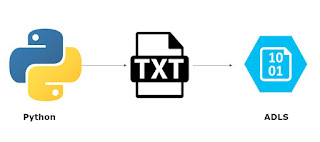
Upload a file to Azure Blob Storage (ADLS Gen 2) using Python

Today we will learn on how to upload a csv file to Azure Blob Storage (ADLS) using Python 
Steps:
  • Create a file to be uploaded to Azure Storage
  • Create a python script
    • Install Azure package from pip
      • pip install azure-storage-file-datalake
    • Import the azure module
      • import os, uuid, sys
      • from azure.storage.filedatalake import DataLakeServiceClient
      • from azure.core._match_conditions import MatchConditions
      • from azure.storage.filedatalake._models import ContentSettings
    • Create a connection to your Azure storage in the python script
      • service_client = DataLakeServiceClient(account_url="{}://{}.dfs.core.windows.net".format("https", 'Storage_account_name'), credential='Storage_Account_Key')
    • Specify the container name
      • file_system_client = service_client.get_file_system_client(file_system="your_container_name")
    • Specify the directory in your Azure storage
      • directory_client = file_system_client.get_directory_client("my-directory")
    • Create a blank txt file
      • file_client = directory_client.create_file("uploaded-file.txt")
    • Read the txt file from your local computer
    • append the data into the txt file (by calling the append_data() function) created in the Azure storage
      •  local_file = open("C:\\Users\\xxxxxxx\\Desktop\\testFile.txt", 'r')
      •  file_contents = local_file.read()
      •  file_client.append_data(data=file_contents, offset=0, length=len(file_contents))
      •  file_client.flush_data(len(file_contents))
    • Go to your Azure blob storage and view the results


To know more about the File upload operations, visit Microsoft Site

Prevent Azure data factory from running multiple instances of a single pipeline at same time

Today we will learn on how to prevent Azure data factory from starting another instance of the pipeline when previous one is still running
Scenario: You have a pipeline that has been set to run every 5 minutes. suddenly, you notice that the pipeline has started to take more than 5 minutes and the next instance of the pipeline exucutes after 5 minutes. this is giving you problems. Follow the steps below:

Steps:
  • Go to your pipeline
    • Click the grey area
  • Go to General > Concurrency
    • Set to 1
    • This will set the number of simultaneous runs of that pipeline to 1 
    • Now only 1 pipeline instance can be run at one time. all the other pipeline runs will be put on waiting stage 

Azure data factory - datetime error in copy activity when loading data in SQL database

Today we will learn on how to deal with loading datetime fields in the database using Data Factory
Scenario: Suppose you have a datetime field in source that you are trying to load into database through data factory v2. you sometime gets an error that datetime is converted into datetime2 or datetime misses loading the datetime column into database. follow the below steps:

Steps:

  • In the copy activity, change the Mapping of the source to string.

  • Use stored procedure approach to load the data into SQL database
  • In the Sink section of copy activity, specify the stored procedure name, table type, and table type parameter
Alternate solution:
  •  Try changing the Mapping of the source to Datetime
    •  specify the date format "yyyy-MM-dd"
  • Run the pipeline
  • it will convert the date into the specified format


How to fix the data factory adf_publish branch being out of sync with the master branch in azure devops

How to fix the data factory adf_publish branch being out of sync with the master branch in azure devops:

The data factory adf_publish branch can go out of sync if you change the path of the master branch file to another folder and delete the files from the old path. To solve this, please follow the steps below.

Steps:
  • Remove your current Git repository from Azure Data Factory v2
  • Reconfigure Git in your data factory with the same settings, but make sure Import existing Data Factory resources to repository is selected 
    • choose New branch
    • enter a new branch name
  • Create a pull request to merge the changes to the collaboration branch (master branch)
    • You can do this also by going to Azure Devops > Repos > Pull Requests
      • Create a new pull request 
      • Select your new branch and merge it into master

Programmatically upload a file to Azure Blob Storage (ADLS) using C# .Net

Today we will learn on how to programmatically upload a file to Azure Blob Storage (ADLS) using C# .Net
Steps:
  • Create a test file called "sample-blob" and write "Test" inside the file.
  • Open visual studio and create a new console application
  • Install Azure storage blob client library for .Net using Nuget:
    • dotnet add package Azure.Storage.Blobs
  • Create a C# class for uploading the file to blog
    • Import the Azure.Storage.Blobs library
    • Create a reference to the container where you want the file to be uploaded
    • Get a reference to the blob (file name)
    • call the blog.upload(local_file_path) function by the path to the file that you want to upload to Azure blob
    • Now, run the script.
    • Once the script finishes execution, go to Azure blob and check if the file has been uploaded or not
    • Open the file to see if the file contains "test" word in it or not.
                  
    • You are done


Upload file to a S3 bucket using Python and Selenium automation testing framework

Today we will learn on how to upload a file to a S3 bucket using Selenium automation testing framework with python
Scenario: When you run the python script for selenium, the following steps will be executed:
      • A web browser will open and at the background a test file will be uploaded to S3
      • Web browser will then navigate to Amazon account > S3 bucket
      • Web browser will verify whether the file has been uploaded or not
Steps:
  • Login to your AWS account and go to S3

  • Create an empty S3 bucket
  • Install boto3 library for python
    • you can use either commands in terminal:
      • pip install boto3
      • easy_install boto3
  • Now create a selenium framework script using python
    • Import the boto3 library in the script
    • Specify your client key and secret key
    • Specify local file path
    • Specify a S3 file name that you want to give to this new file when uploaded in S3
  • Create a boto3 client object:
    • s3 = boto3.client('s3',aws_access_key_id=ACCESS_KEY, aws_secret_access_key_id=SECRET_KEY))
  • Use the below function to upload the file to S3:
    • s3.upload_file(local_file_path, bucket, s3_file_name_to_overwrite)
  • Run the script
  • After running the script, go to AWS S3 bucket and you will find the new file uploaded.
  • You are done :)
Note: the script shared above is only for uploading the file in S3, you have to add additional steps in the python selenium framework (after the upload code) to verify, whether, the file has been successfully uploaded in S3 or not.